Learn the key features of Ref7 on your Apple Watch – from the match timer, goals and team time-outs to penalty management. Then discover what you can do with the iPhone. Four chapters guide you step by step through all the essential features.
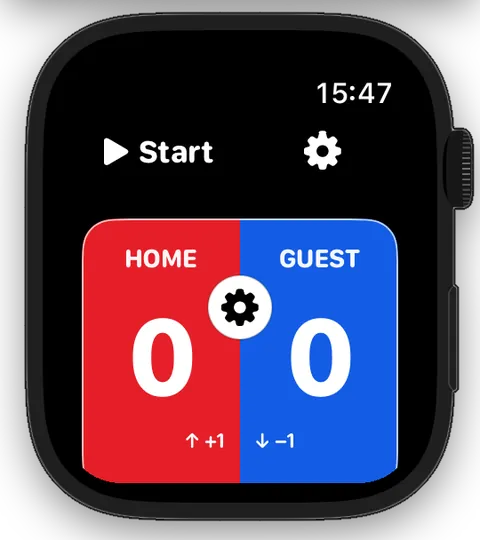
When you open Ref7 on your Apple Watch, you arrive at the main screen. This is where you control the app during the match.
The main screen has two areas:
Timer area (top)
This displays the match time and lets you control the match timer. Tap it to start or pause the match timer. Press and hold to open the Watch app settings – before the match, during half-time or while play is stopped.
Score area (bottom)
This shows both teams in their selected colours and the current score. Swipe up or down during the match to add or remove goals.
The main screen combines the timer and score.
Navigation
Moving Between Screens
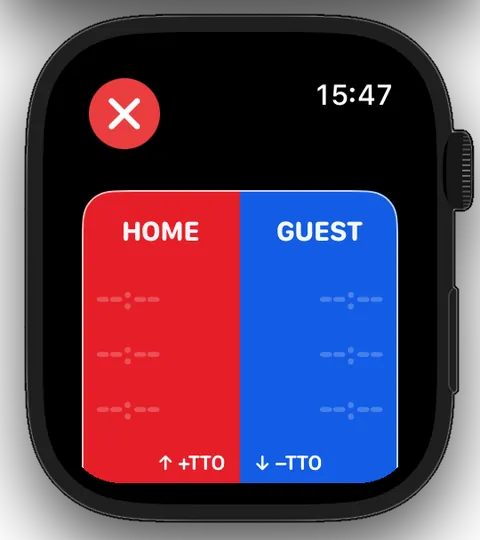
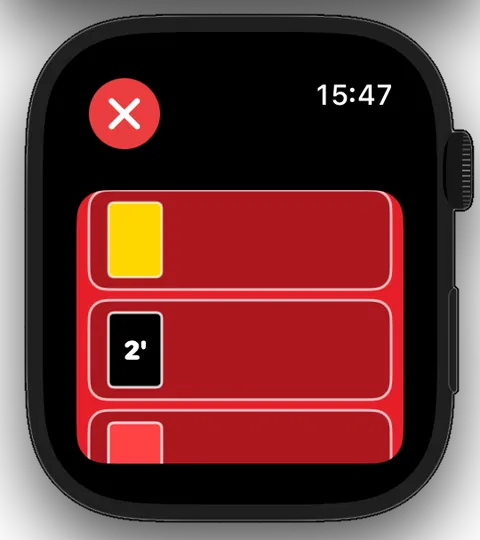
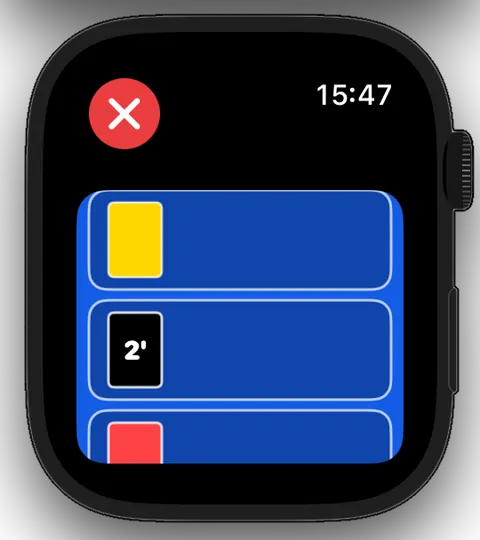
Alongside the main screen, Ref7 has additional screens for personal penalties and team time-outs. Reach them by swiping horizontally.
Swipe right
This takes you to the HOME penalty screen. Swipe right again to reach the team time-out screen.
Return to the main screen
Swipe in the opposite direction to return to the main screen. Alternatively, tap in the top-left corner of any additional screen.
Swipe left
This takes you to the GUEST penalty screen. Swipe left again to reach the team time-out screen.
Team time-outs↔HOME penalties↔Main screen↔GUEST penalties↔Team time-outs
Chapter 03 explains the penalty screens in detail.
Chapter 02 · Apple Watch
Your Watch – The Basics
From match settings to automatic saving, this chapter follows the natural flow of a complete handball match on your Apple Watch.
Learning goal
You can run a complete match using Apple Watch alone. In this chapter, we focus on match time, goals and team time-outs. You’ll learn how to manage personal penalties in Chapter 03.
Before opening the first half, you can adjust the match time, team time-out rules and team colours. All of these settings are available directly on Apple Watch.
Step 1
Set the Match Settings
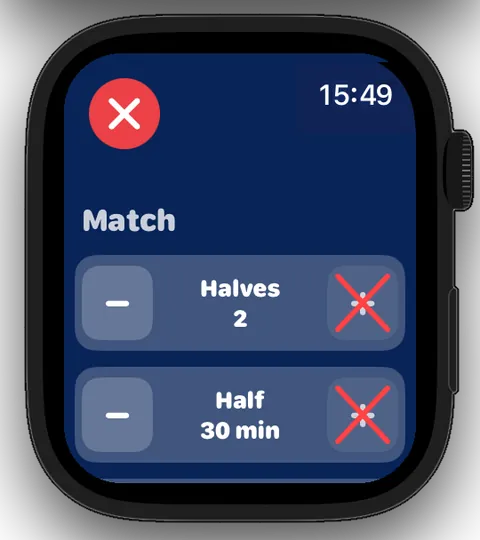
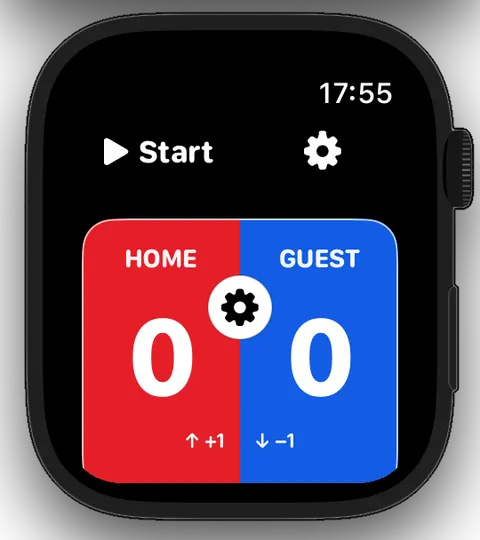
Tap the gear to the right of “▶ Start” on the main screen to open the match settings.
Here you can set:
Periods
The number of periods.
Period
The duration of each period.
Break
The duration of the half-time break.
Team time-outs per team
The total number of team time-outs available to each team.
Team time-outs per half
The number of team time-outs a team may take during one half.
Last five minutes
The number of team time-outs each team may take during the final five minutes of the match.
Use the plus and minus buttons to adjust the values. Changes that are not available are marked accordingly.
Use “Reset” to restore the standard settings for a 60-minute handball match.
Main screen before the matchMatch settings
Step 2
Set the Team Colours
As long as the first half has not yet been opened using “▶ Start”, you can access the team settings in two ways: tap the gear icon between HOME and GUEST on the main screen, or press and hold the score area on the main screen.
Once the first half is open, pressing and holding the score area performs a different action.
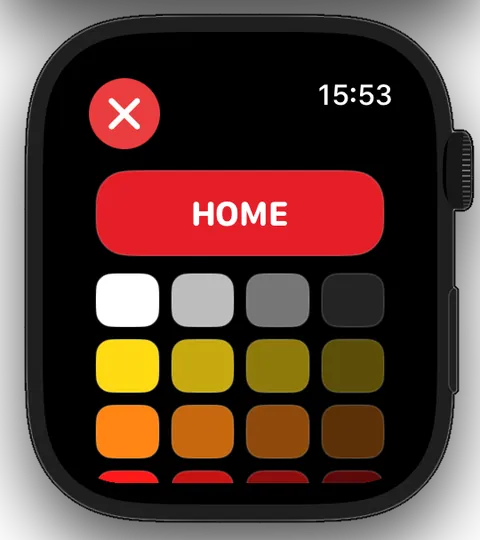
Here you can choose the shirt colour for each team.
Tap the colour circle beside HOME or GUEST, select the required colour from the palette and confirm with “OK”. Alternatively, press and hold a colour to apply it immediately.
Ref7 then uses the selected colours on its various screens.
Team settingsSelect the HOME colour
Step 3
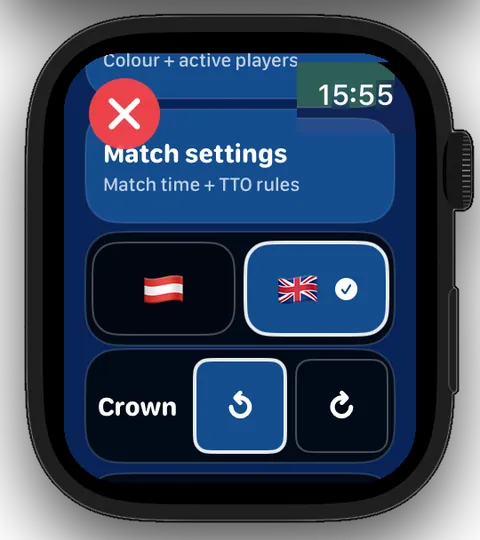
Explore the Watch App Settings
Alongside the settings for a particular match, Ref7 also provides general settings for using the app.
Press and hold the timer area on the main screen to open them.
The Watch app settings contain:
Match time
An overview of the configured periods and break duration.
Open period
The option to open the first half of the match. The match timer is not running yet.
Team settings
Access to the team colours.
Match settings
Access to the match time and team time-out rules.
Language
Choose between German and English.
Crown
Set the rotation direction for time corrections with the Digital Crown.
Match-time display
Choose whether the time in the second half relates to the current half or the complete regulation time.
Cancel match
Cancels the current match and starts a new match.
You can keep the default settings while getting started.
Press and hold the timer to reach the general settings.
Step 4
Select the Throw-off Team
Your match is now prepared. Open the first half by tapping “▶ Start” on the main screen or from the Watch app settings.
When you open the first half, Ref7 asks which team has the throw-off.
Tap HOME or GUEST to select the team.
A small ball symbol then identifies the team with the throw-off on the main screen.
Main screen before the matchSelect the team taking the throw-off
Step 5
Ready for the Whistle
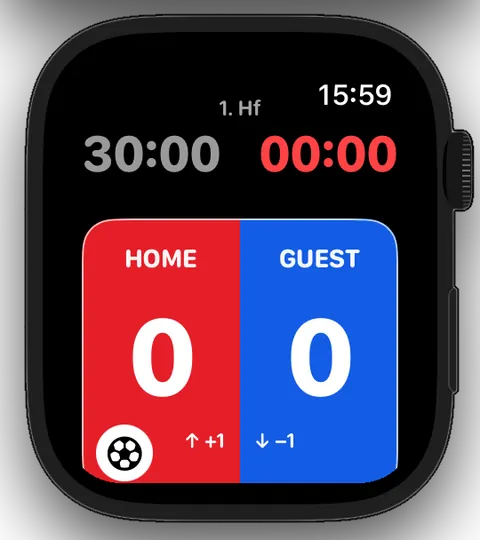
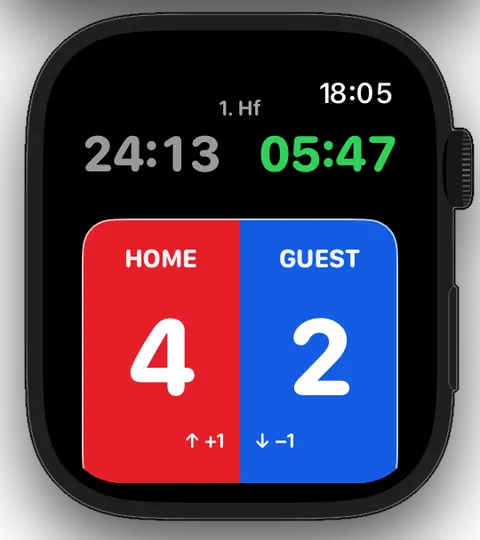
After selecting the throw-off, Ref7 displays the prepared match screen.
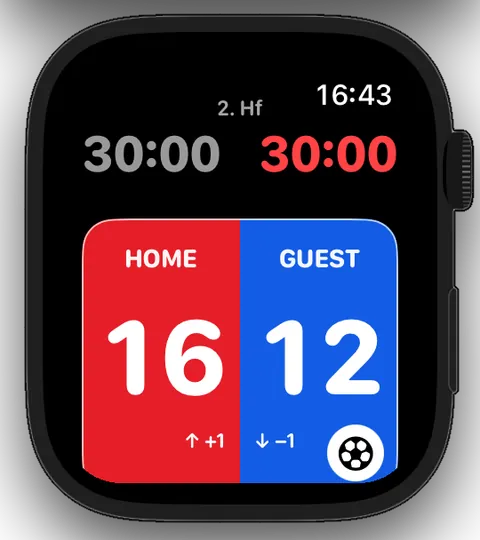
You can see:
Left
The remaining playing time in the current half.
Right
The elapsed match time.
Top
The current period.
Bottom
The score.
Ball symbol
Shows which team has the throw-off (HOME in the screenshot).
When the match is under way, tap the timer area to start the match timer.
The next section explains how to control the match timer during the match and correct the match time when necessary.
The prepared match screen before the whistle.
Section 2.2
During the Match
During the match, you control the match time, record goals and manage team time-outs directly on your Apple Watch.
Step 1
Control the Match Timer
Tap the timer area on the main screen to start or pause the match timer.
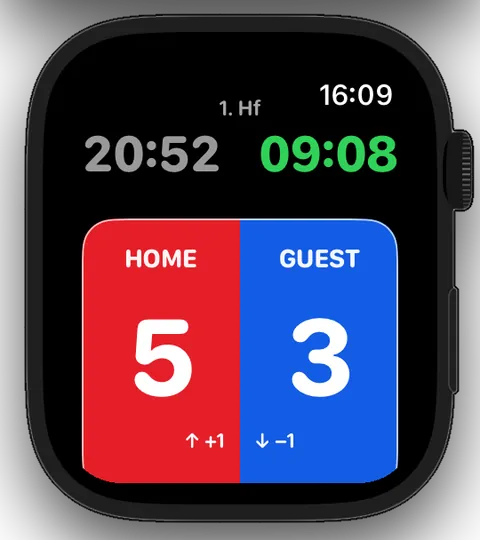
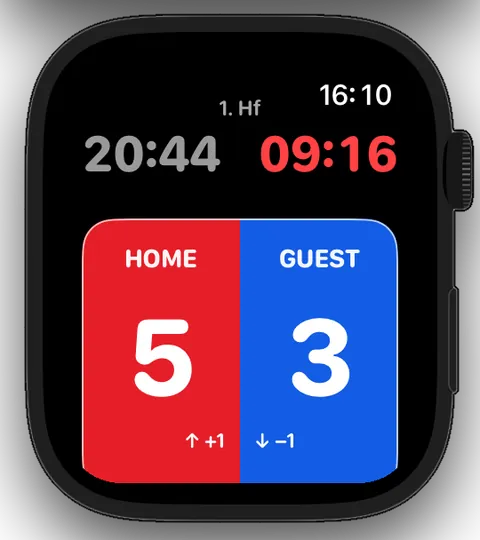
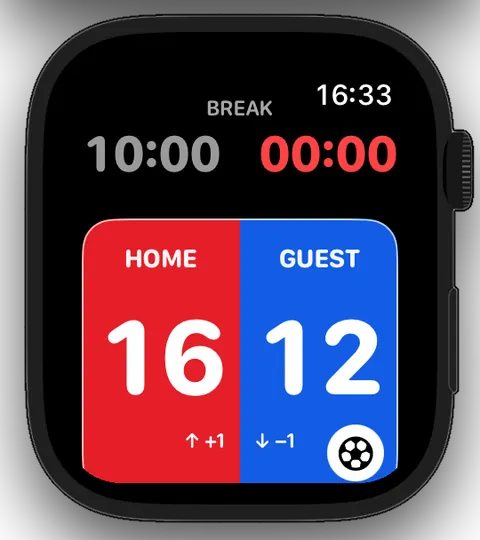
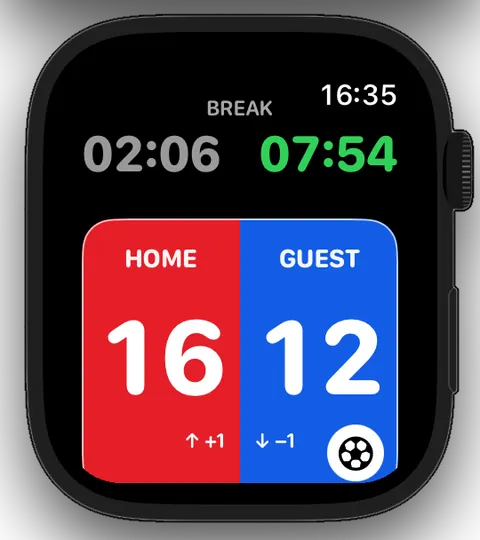
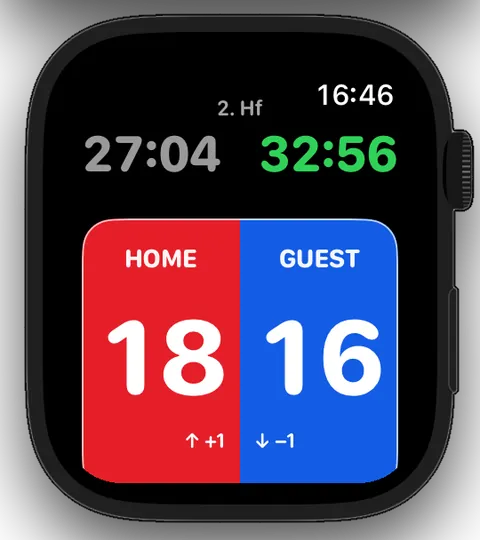
The colour of the elapsed match time on the right shows its current state:
Green
The match timer is running.
Red
The match timer is paused.
While the match timer is paused, turn the Digital Crown to correct the match time. You can change the rotation direction used for this correction in the Watch app settings.
Only while the match timer is paused: Press and hold the timer area to open the Watch app settings. Pressing and holding while the timer is running does not open the settings.
Match timer runningMatch timer paused
Step 2
Record and Correct Goals
Swipe up or down in the score area on the side of the relevant team:
Swipe up
Add one goal (+1).
Swipe down
Remove one goal (−1).
For example, swipe up in the red HOME area to add a HOME goal. Swipe down in the same area to remove one.
The team colours help you identify the correct side quickly.
↑
Swipe upAdd goal · +1
↓
Swipe downRemove goal · −1
Step 3
Manage Team Time-outs
Open with a long press
During the match, press and hold the score area on the main screen. Ref7 pauses a running match timer and opens the team time-out screen. This does not record a team time-out.
Open by swiping
Swipe twice to the left or right from the main screen. You reach the team time-out screen via the corresponding penalty screen. A running match timer continues when you navigate this way. If required, pause it by tapping the timer area on either the main screen or the team time-out screen.
Record a team time-out
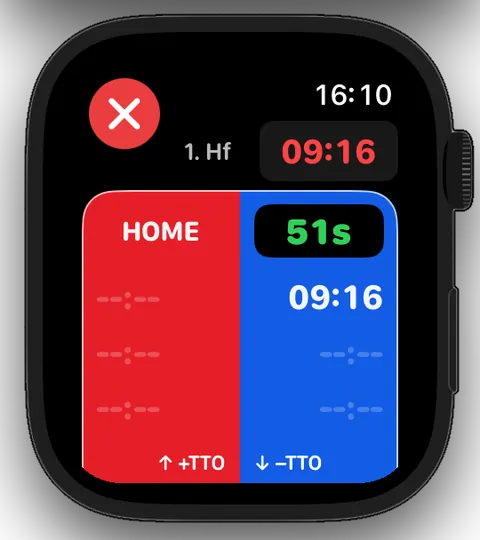
Swipe up on the side of the relevant team on the team time-out screen. If necessary, Ref7 automatically pauses the match timer, records the team time-out and starts the 60-second TTO timer. The remaining time is shown in green.
Document a team time-out
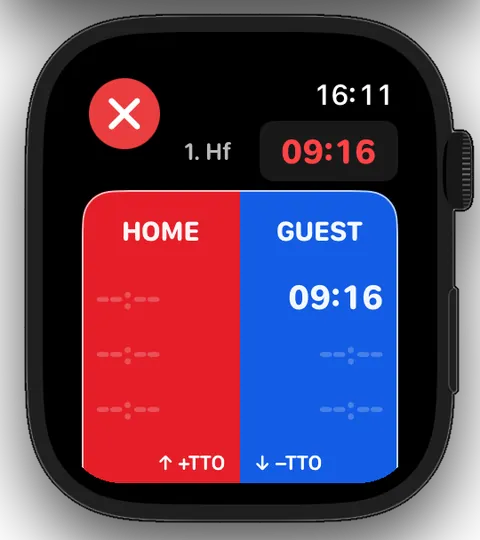
For each team time-out, Ref7 saves the match time at which it was taken. For example, “09:16” means the team took its team time-out at 9 minutes and 16 seconds of match time.
Undo a team time-out
Swipe down on the side of the relevant team on the team time-out screen to undo a team time-out that has already been recorded.
Correct the match time
While the match timer is paused on the team time-out screen and the match time is shown in red, use the Digital Crown to correct it.
Resume the match
Tap the paused match timer. Ref7 ends any team time-out still in progress, starts the match timer and automatically returns to the main screen.
Automatic end
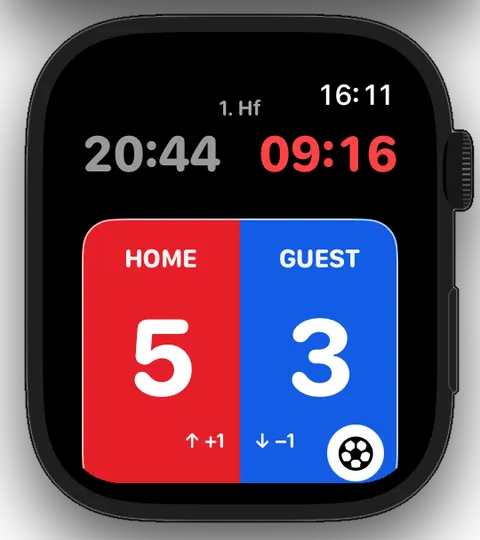
When the 60-second TTO timer expires, Ref7 automatically returns to the main screen. The ball symbol identifies the team that will resume play – GUEST in this example.
Two different times: “09:16” is the saved match time at which the team time-out was taken. “51s” is the remaining time on the running TTO timer.
Team time-out in progress: 51 seconds remaining.The team time-out was taken at 09:16 match time.After the team time-out, the ball symbol identifies the team that will resume play.
Section 2.3
Half-time
After the first half ends, you can open the half-time break and then start the break timer. While the break timer is paused, you can correct the time with the Digital Crown. You can open the second half when the break expires or earlier.
Step 1
End the First Half
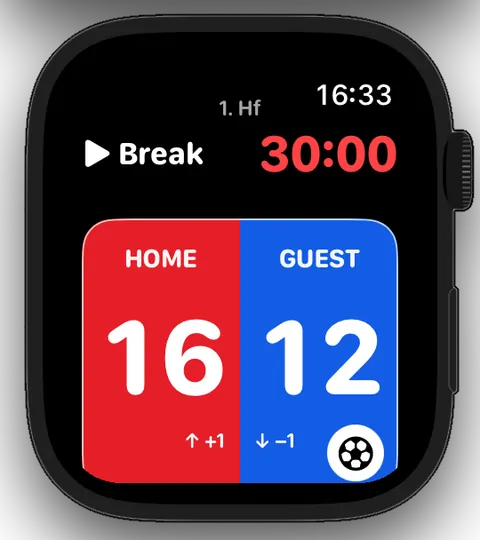
When the first half ends, the match timer stops. Ref7 displays “▶ Break”.
Tap “▶ Break” to open the half-time break.
The ball symbol beside the score already identifies the team that will take the throw-off in the second half.
After the first half, you can open the half-time break.
Step 2
Start and Control the Half-time Break
When you open the break, Ref7 displays the configured break duration and the elapsed break time. The break timer is initially paused.
Tap the timer area to start or pause the break timer.
While the break timer is paused, turn the Digital Crown to correct the time. The elapsed break time is shown in green while the break timer is running.
Two separate actions: First open the half-time break using “▶ Break”. Then start the break timer by tapping the timer area.
If both teams return early, you do not need to wait for the configured break duration to expire. You have two options:
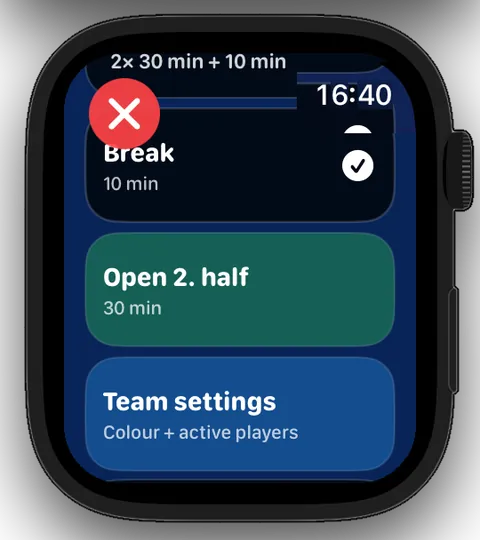
Using the Watch menu: Press and hold the timer area and select “Open second half”. This works whether the break timer is running or paused.
Using the Digital Crown: Pause the break timer and use the Digital Crown to advance the break time to the end of the break. You can then open the second half normally.
Use the Watch menu to open the second half early.
Step 4
Open the Second Half Normally
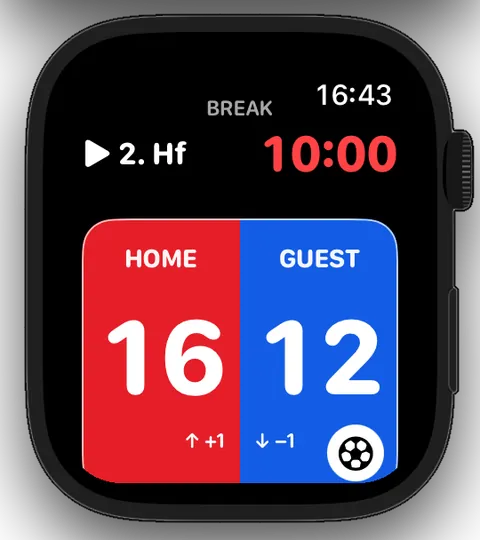
When the half-time break expires, Ref7 displays “▶ 2nd half”. Tap “▶ 2nd half” to open the second half.
Ref7 then displays the match screen for the second half. The match timer is initially paused.
Tap the timer area to start the match timer and begin the second half.
Two separate actions: First open the second half using “▶ 2nd half”. Then tap the timer area to start the match timer.
The break is over: “▶ 2nd half” opens the second half.The second half is open; the match timer is still paused.
Section 2.4
After the Match
When regulation time expires, you can finish the match. Ref7 saves the match history automatically and then lets you prepare a new match.
Step 1
The Second Half and Full Time
During the second half, Ref7 continues to display the remaining and elapsed match time along with the current score. The elapsed match time is shown in green while the match timer is running.
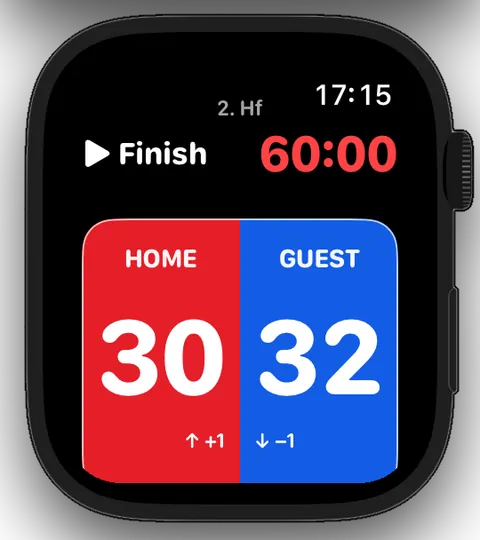
When regulation time expires, the match timer stops. Ref7 displays “▶ End”.
Tap “▶ End” to finish the match.
The second half is in progress.After regulation time, you can finish the match.
Step 2
Match Complete
After you tap “▶ End”, the match is completed and saved automatically. The final score remains visible on Apple Watch.
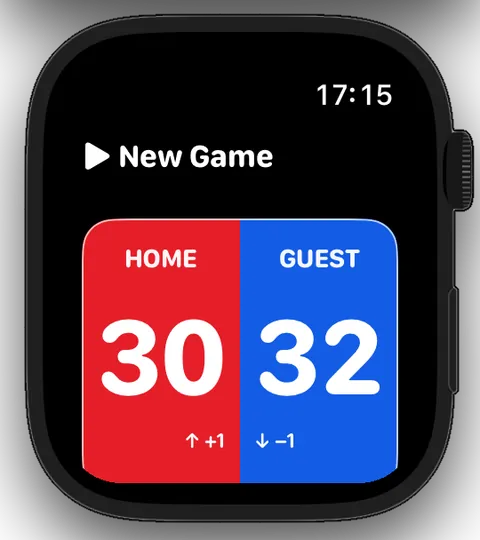
The timer area now displays “▶ New match”. The completed match remains visible on your Apple Watch until you explicitly begin a new match. It has already been saved on your iPhone. Chapter 04 explains how to access previous matches there.
After the match is complete, the final score and “▶ New match” remain visible.
Step 3
Prepare a New Match
Tap “▶ New match” to begin another match. Alternatively, use the corresponding option in the Watch app settings.
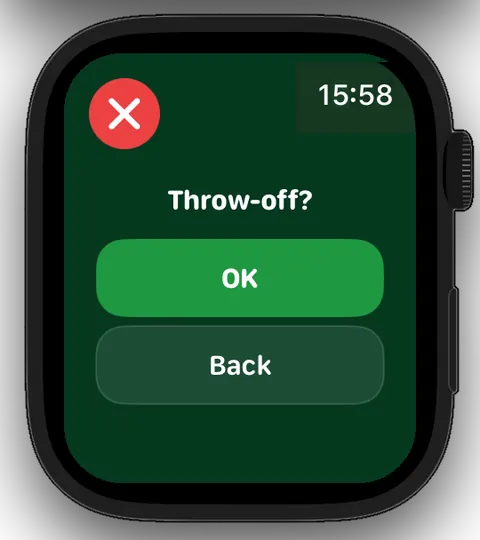
Ref7 then asks whether you really want to create a new match. The new match is created only after you confirm.
Chapter 03 · Apple Watch
Your Watch – Penalties
You already know how to manage match time, goals and team time-outs on your Apple Watch. Now it is time to add personal penalties.
Learning goal
Ref7 helps you record yellow cards, two-minute suspensions and disqualifications. You can keep an eye on active suspensions directly on the main screen. And if you assign a penalty to the wrong player, you can correct it afterwards.
Before a handball match, the match report records which players are taking part and their player numbers. You can optionally enter these active players in Ref7 as well. Their numbers will then be immediately available when you later issue a penalty. Entering active players is optional.
Step 1
Open Team Settings
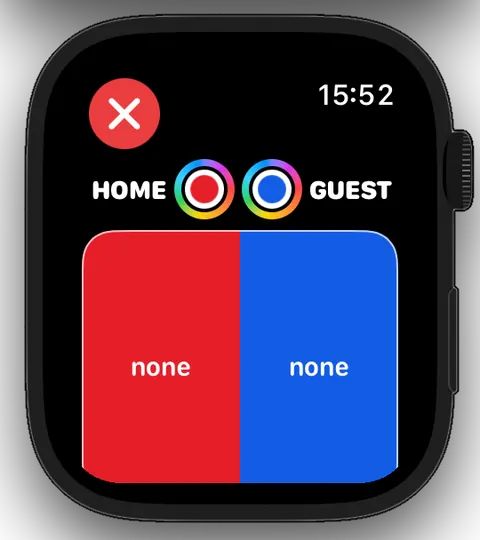
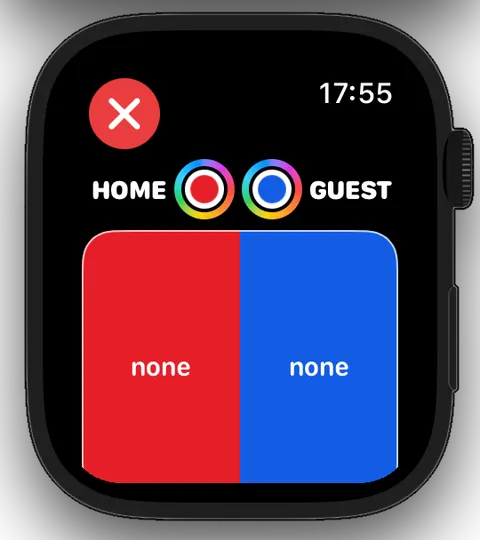
Before the match, tap the gear in the centre of the score area. Alternatively, press and hold the score area.
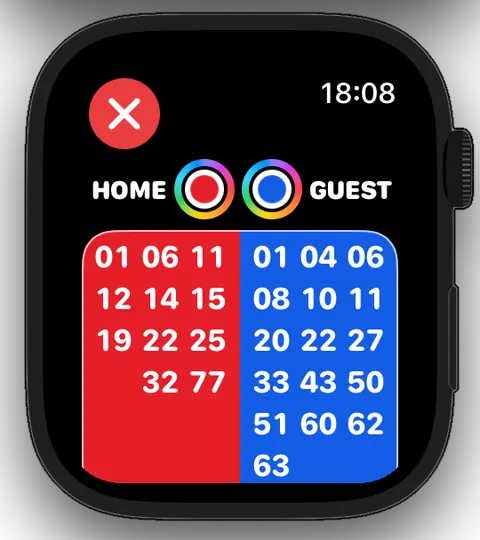
Ref7 opens Team Settings. HOME and GUEST initially show “none” until active players have been selected.
Use the centre gear to open Team Settings.No active players have been entered for HOME or GUEST yet.
Step 2
Select Active Players
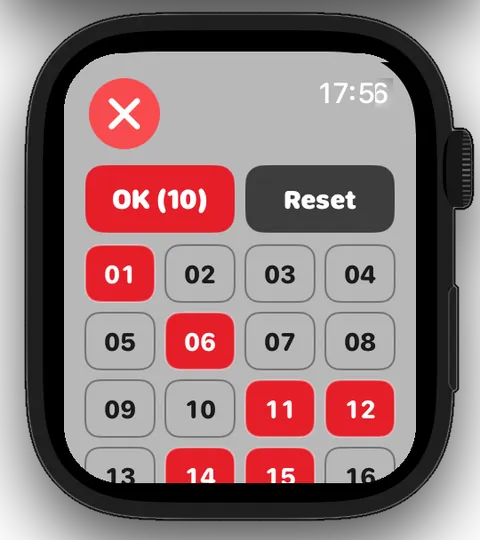
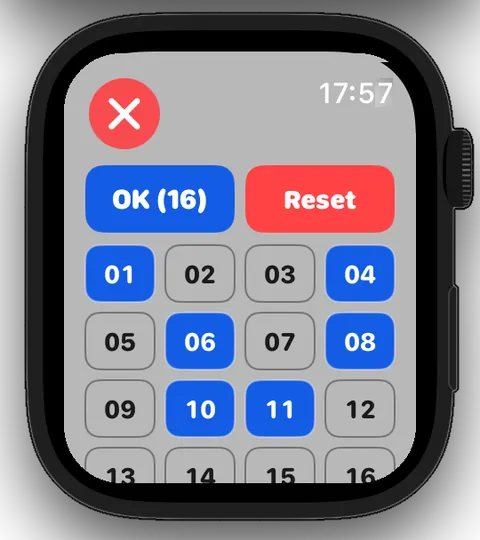
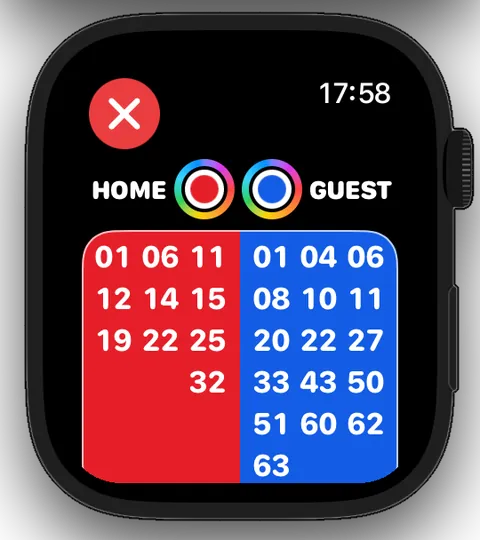
In Team Settings, press and hold the HOME or GUEST area. Ref7 then displays the player-number selection.
Tap the player numbers you need. Selected numbers are highlighted in the corresponding team colour.
The number in the “OK” button shows how many players are selected. Confirm your selection with “OK”. Use “Reset” to clear the selection.
Select active players for HOMESelect active players for GUEST
Step 3
Review the Selection
After confirmation, the active player numbers appear in Team Settings. This lets you review the selection for both teams at a glance.
The selected player numbers appear in Team Settings.
Section 3.2
Issue Penalties
This section demonstrates the complete workflow using a two-minute suspension for GUEST player #04.
Step 1
Open the Penalty Screen
From the main screen, swipe right to open the HOME penalty screen. Swipe left to open the GUEST penalty screen.
The example opens the GUEST penalty screen. The match timer is still running at this point.
Begin on the running main screen.Swipe left to open the GUEST penalty screen.
Step 2
Select the Penalty Type
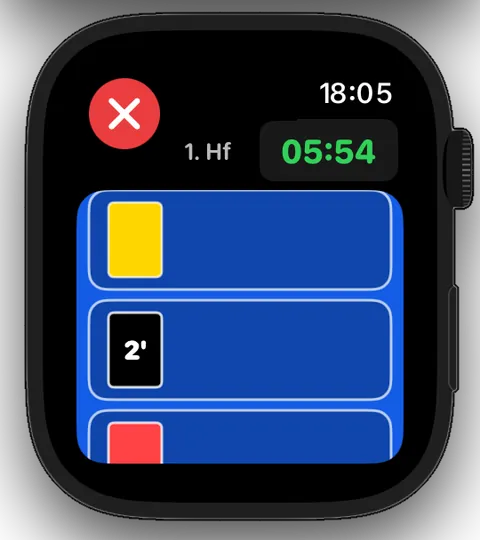
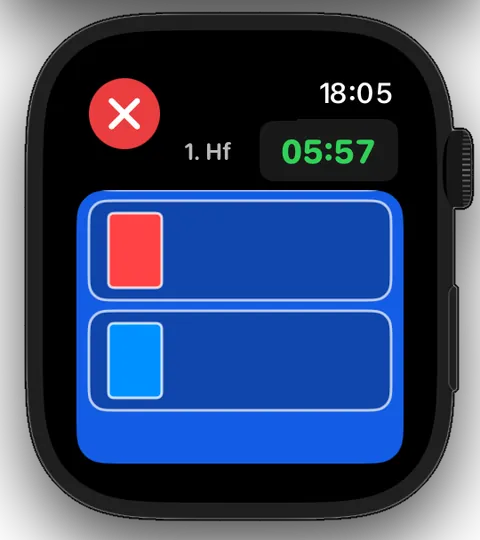
Four penalty types are available on the penalty screen:
Yellow card
Warning. The match timer continues during entry if it was already running.
Two-minute suspension (black “2′” button)
Two-minute suspension. A running match timer is paused automatically.
Red card
Disqualification. A running match timer is paused automatically.
Blue card
Disqualification with report. A running match timer is paused automatically.
Disqualification with report: For a disqualification with report, you first show the red card and then the blue card on the court. In Ref7, select only the blue card. Do not enter an additional red card in Ref7.
For this example, tap the black “2′” button.
The red and blue cards complete the four available penalty types.
Step 3
Select the Player
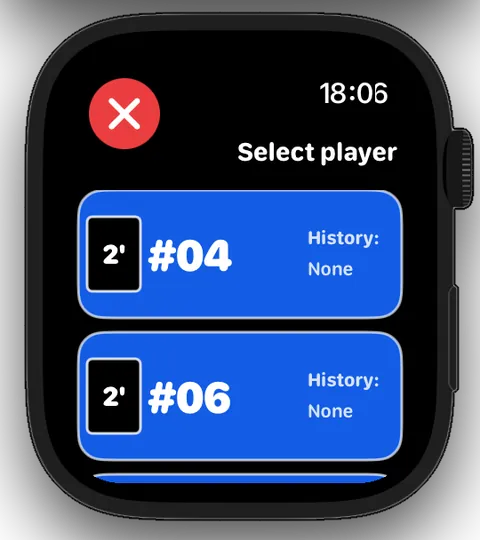
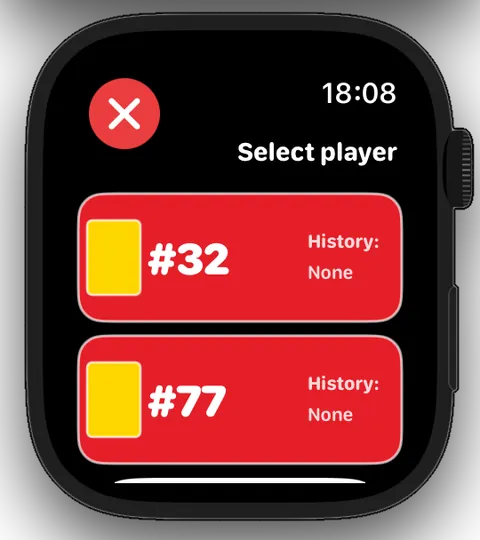
After you select the penalty type, Ref7 displays the active players for that team. Scroll with your finger or the Digital Crown and tap the required player number.
Ref7 also shows each player’s previously recorded personal penalties.
Penalising officials: Above the player numbers, you’ll find the “Trainer” entry. Use it to record penalties against team officials as well. Ref7 applies the special rules for penalising officials.
For this example, select GUEST player #04.
Select player #04 for the two-minute suspension.
Step 4
Confirm the Penalty
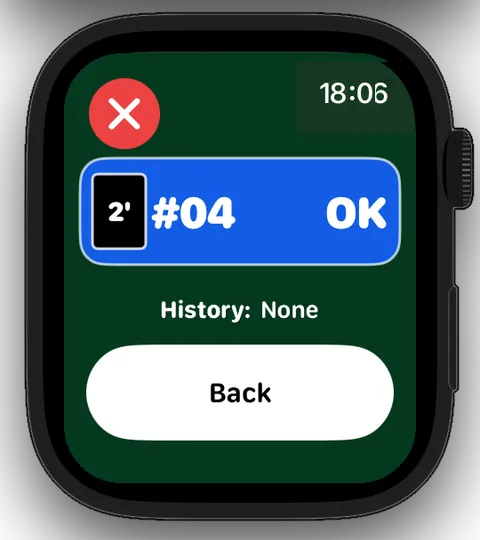
Ref7 shows the selected penalty type, player number and any previously recorded penalties for the player or official for you to review.
The penalty is saved only after you explicitly confirm the entry with “OK”. Use “Back” if you need to change the selection.
Review and confirm the suspension for GUEST #04.
Step 5
Complete the Penalty and Correct the Match Time
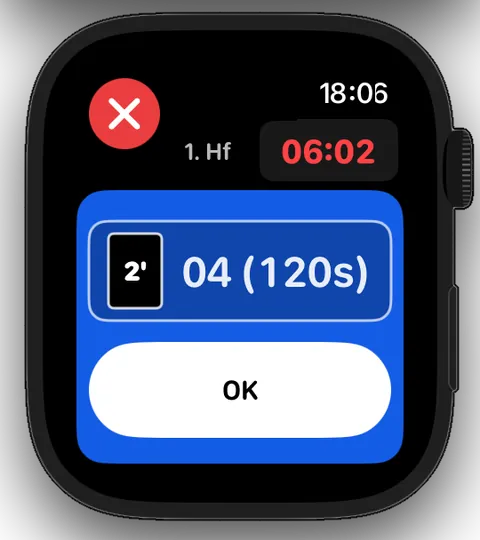
After confirmation, the final OK screen appears. It summarises the penalties of this type recorded for the team.
Tap “OK” to return to the main screen and restart the match timer.
Correct the paused match time on the final OK screen if necessary.
Step 6
Resume Play and Monitor Suspensions
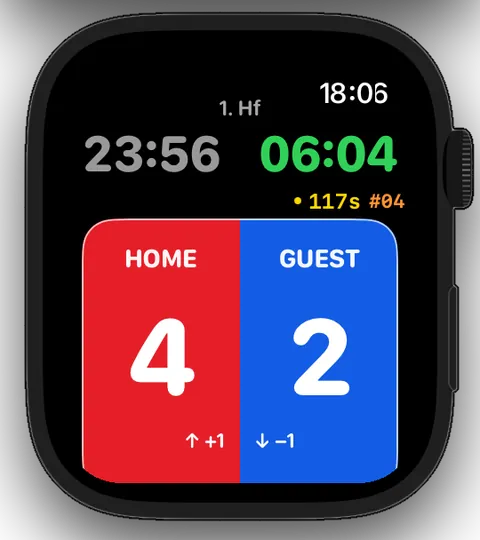
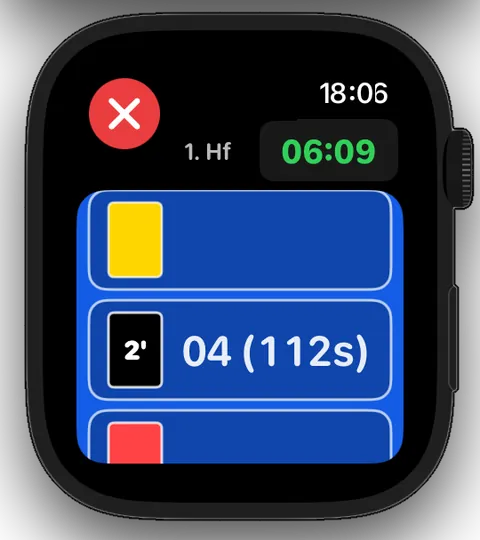
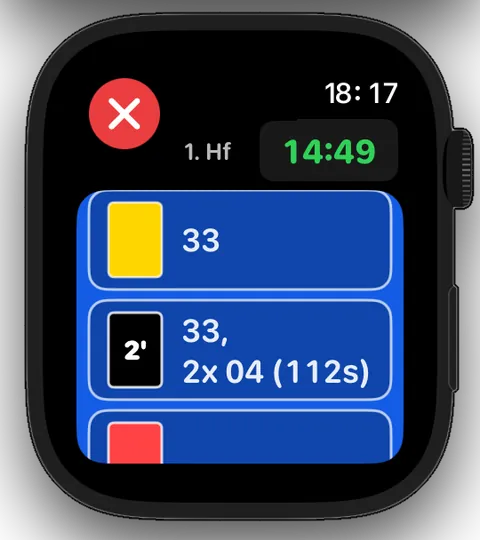
For an active two-minute suspension, the main screen shows the remaining suspension time in seconds together with the player number. The example initially shows 117 seconds remaining for GUEST #04.
The penalty screen also shows the remaining time. A few seconds later, it displays 112 seconds for #04, so you can monitor the remaining time on either screen.
If the match timer is paused, tap the timer area directly on the penalty screen. Ref7 returns to the main screen and starts the match timer.
The main screen shows 117 seconds remaining for GUEST #04.A little later, the penalty screen shows 112 seconds remaining.
Section 3.3
Add More Players
You do not need to select every active player before the match. While issuing a penalty, you can add a player number that has not yet been selected. Ref7 then automatically adds it to the list of active players.
Step 1
Open All Players
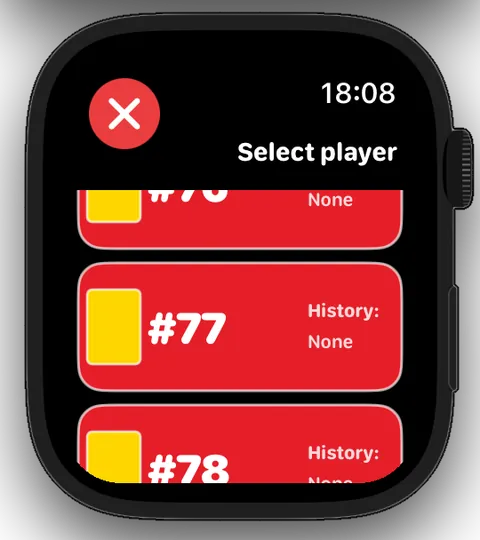
Scroll to the bottom of the player-number selection and tap “All players”.
Ref7 now displays “Trainer” and every player number from #01 to #99. Scroll to the number you need and select it.
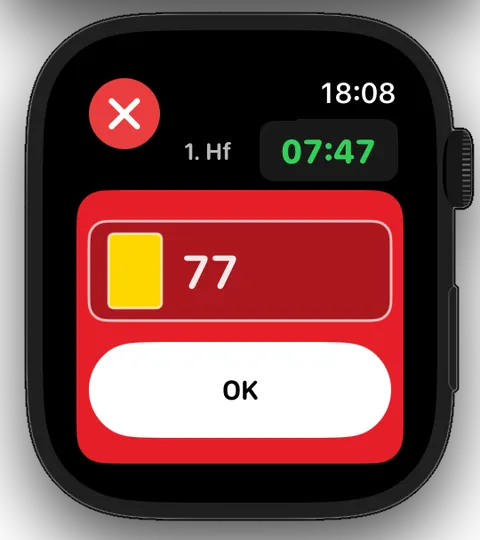
In this example, HOME player #77 receives a yellow card even though #77 was not previously selected as an active player.
“All players” appears at the end of the active-player list.Player #77 is available in the complete list.
Step 2
Add the New Player Number
Confirm the penalty and complete the workflow as usual.
Ref7 automatically adds #77 to HOME’s active players. The number then appears in Team Settings and is immediately available for future penalties.
The second screenshot is for illustration only and shows the automatically updated list of active players. You do not need to open Team Settings during the match to verify the update. You do not need to check this separately during the match. Ref7 takes care of it for you!
The yellow card for HOME #77 has been recorded.#77 has been added automatically to HOME’s active players.
Section 3.4
Keep Track of Penalties
Ref7 groups all personal penalties recorded so far by penalty type on the penalty screen.
Overview
Read the Penalty Summary
In this example, player #33 has received a yellow card and a two-minute suspension. Player #04 has received two two-minute suspensions.
The display “2x 04” shows that player #04 has already received two two-minute suspensions. The remaining suspension time is currently 112 seconds.
Red and blue cards also appear in the corresponding penalty summary.
The penalty summary groups all personal penalties by type.
Section 3.5
Correct Penalties
If a penalty was assigned to the wrong player number or recorded by mistake, you can correct or delete it from the penalty screen.
Step 1
Open Corrections
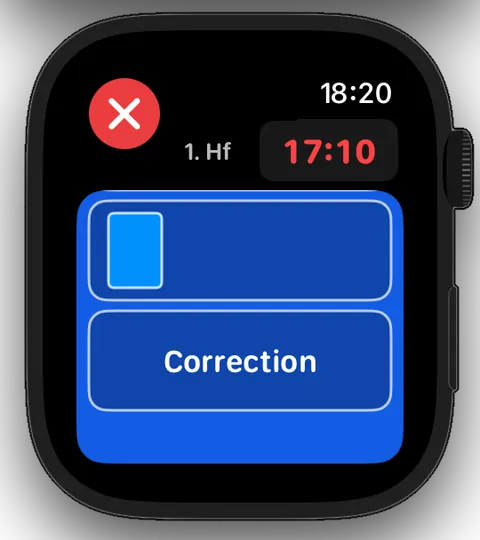
As soon as at least one penalty has been recorded for a team, the “Correction” button appears at the bottom of that team’s penalty screen.
Tap “Correction”. Ref7 pauses the match timer if it is running.
The “Correction” button appears once penalties have been recorded.
Step 2
Select the Penalty
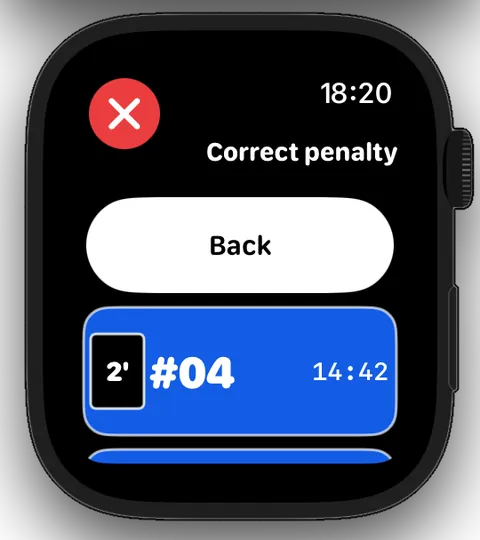
Ref7 displays the team’s penalties in reverse chronological order. The newest penalty is at the top.
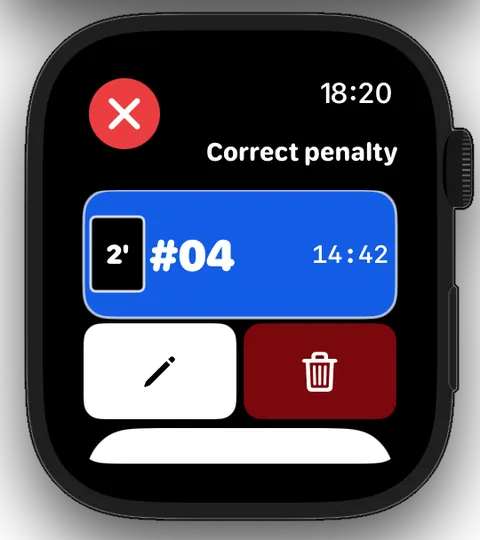
Tap the penalty you need to correct. In this example, select the second two-minute suspension for GUEST #04, which #04 received at match time 14:42.
The newest penalty appears at the top of the correction list.
Step 3
Correct or Delete
Use the pencil to correct the player number. Use the bin to delete the selected penalty.
Both correcting a player number and deleting a penalty must be confirmed.
Pencil to correct, bin to delete
Step 4
Correct the Player Number
A correction changes only the player number. The penalty type and the original time of the penalty remain unchanged.
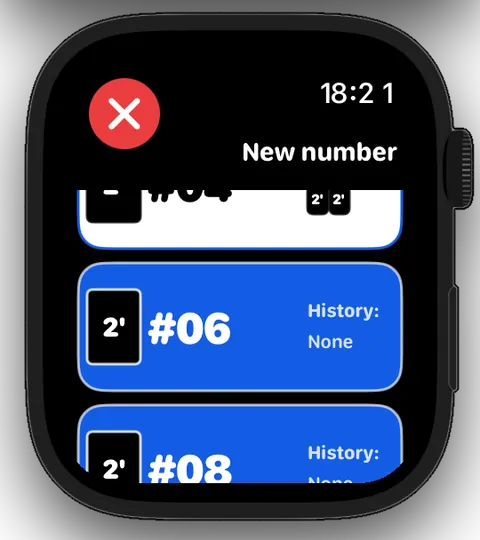
In this example, the two-minute suspension is transferred from GUEST #04 to GUEST #06.
GUEST #06 is selected as the new player number.
Step 5
Complete the Correction
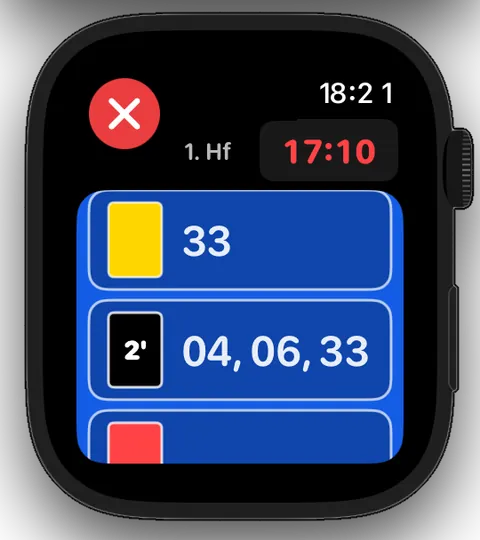
After confirmation, Ref7 shows the updated penalty summary. In the example, GUEST players #04, #06 and #33 then each have one two-minute suspension.
Tap “OK” to return to the main screen. The match timer resumes.
After correction, the summary shows player numbers #04, #06 and #33.
Chapter Complete
Done – You Now Know All the Features on Your Watch!
You now know how to manage match time, goals, team time-outs and personal penalties directly on your Apple Watch.
You have now learned all of Ref7’s features on the Watch. In the next chapter, we will show you how Ref7 also supports you on your iPhone.
Chapter 04 · iPhone
Your iPhone – Preparation and Match Reports
Here you’ll learn how to prepare matches on your iPhone, save your own presets and manage completed matches.
Your learning goal
You can prepare teams and match rules, review saved matches and share a complete match report as a PDF.
Your Apple Watch is the central tool during a match. The iPhone complements it before and after the game.
Main screen
Everything Important at a Glance
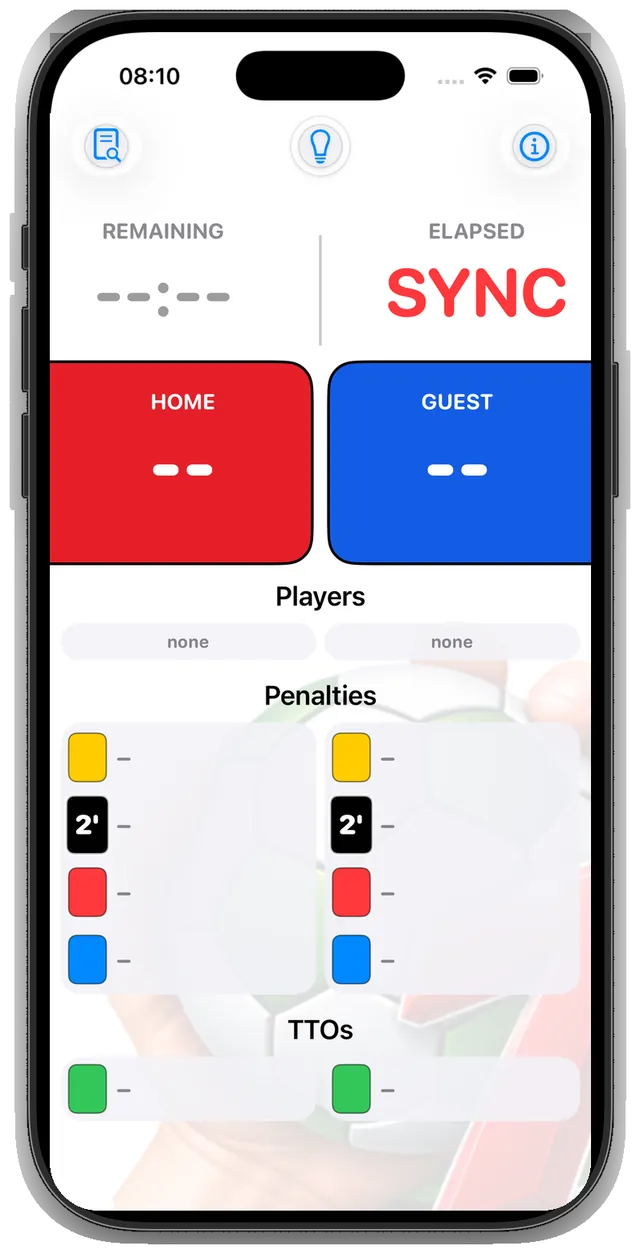
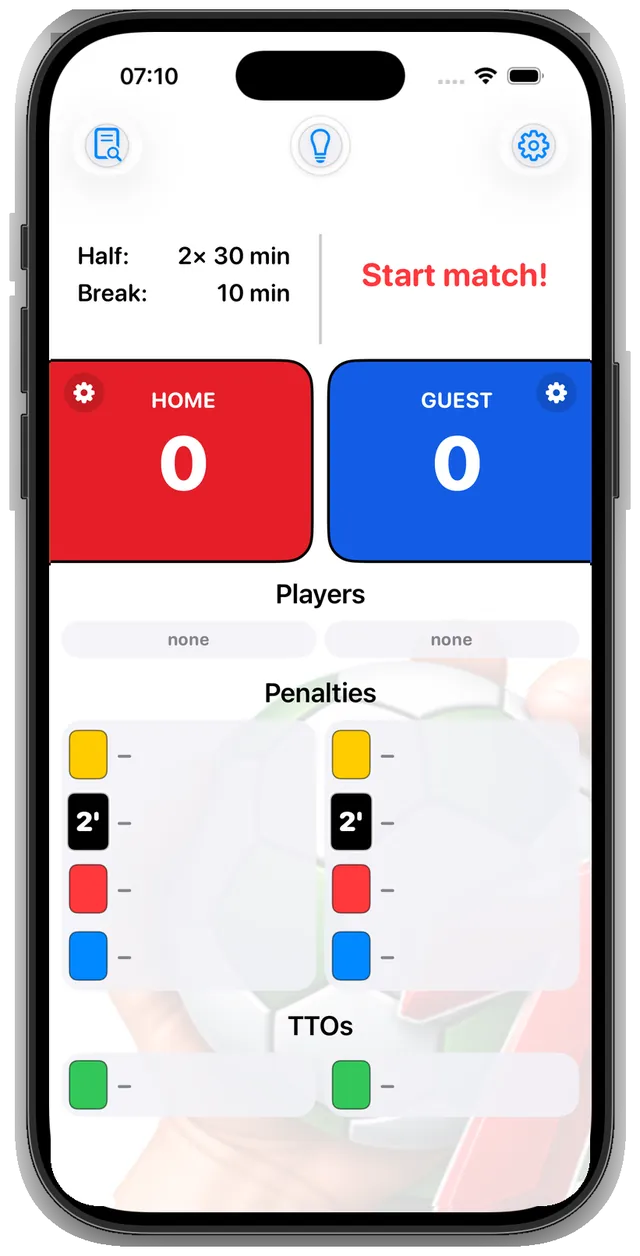
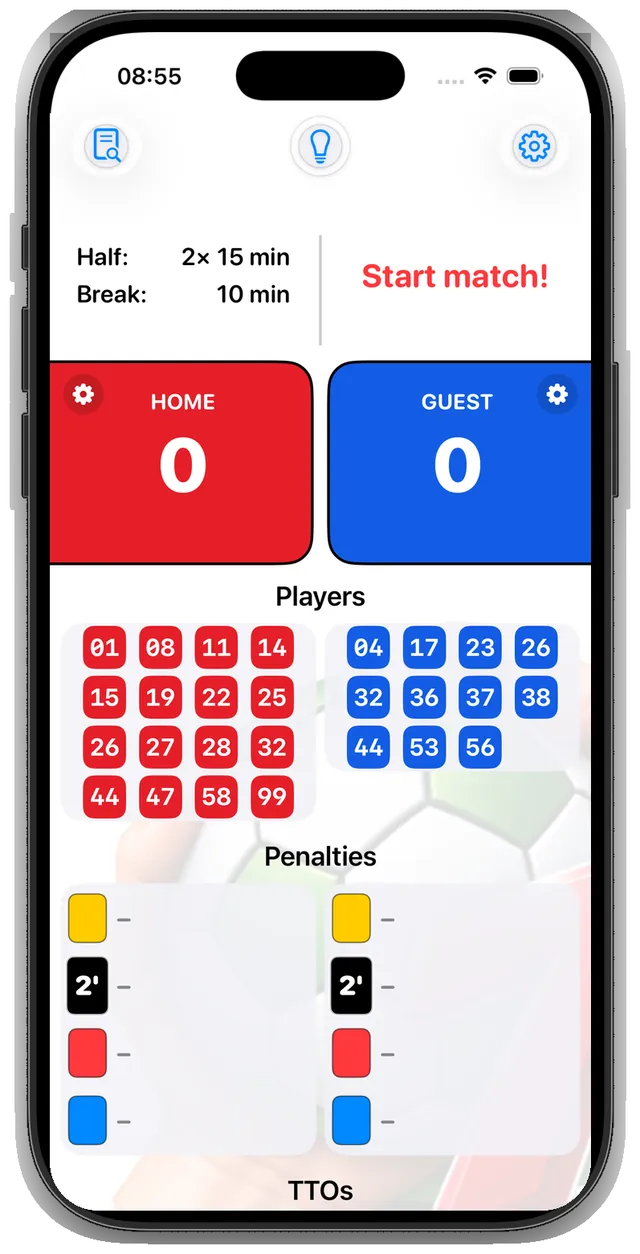
The iPhone main screen shows match time, score, active players, penalties and team time-outs. When connected, this information is synchronized with your Apple Watch.
The Watch also works while the iPhone is switched off. Once the connection is restored, matches completed offline on the Watch are transferred as well.
Top left: Match report
Opens the current match report or the archive of past matches.
Top centre: Ref7 Help
Opens the detailed Ref7 Help before the match.
Top right: Match and app settings
Opens the editable match settings before the match.
“SYNC” appears while the Watch is disconnected.Before the match, the archive, help and settings are available directly from the main screen.
04.2
Prepare Teams and Active Players
Before the match, you can define the team names, shirt colours and active player numbers. This keeps all the relevant information clear during the match and in the final match report.
Before the match
Prepare Teams and Active Players
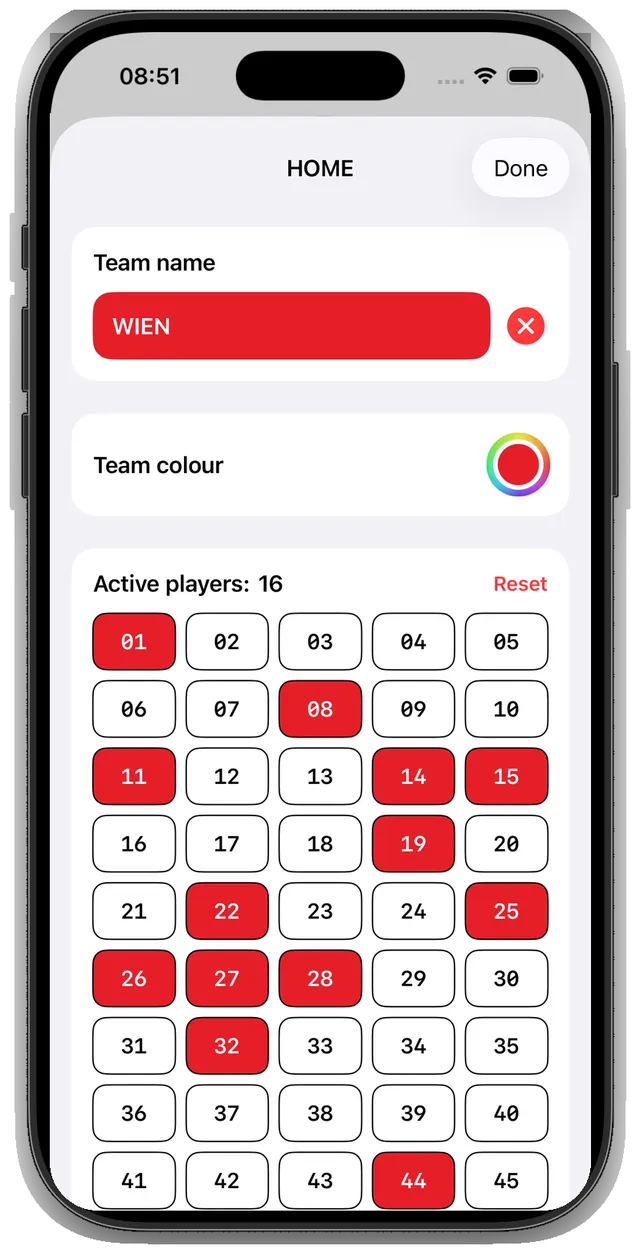
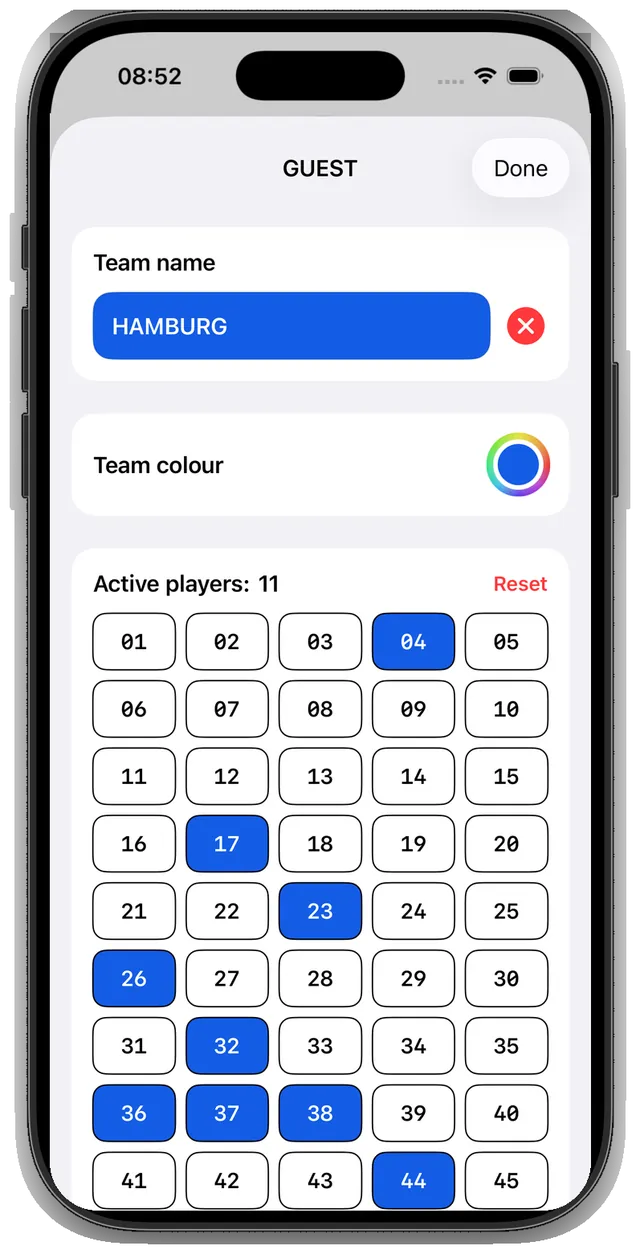
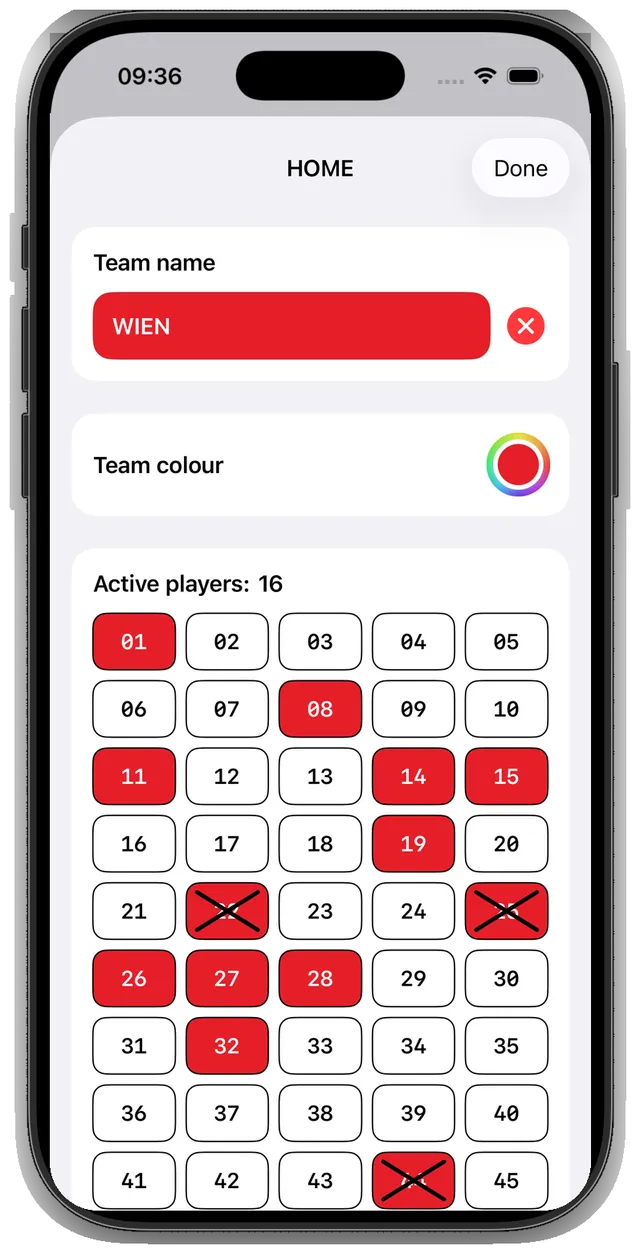
On the iPhone main screen, tap the gear in a coloured team container or press and hold the container. Then enter the team name, choose the shirt colour and activate the required player numbers from 01 to 99. Selected numbers are highlighted in the corresponding team colour. Confirm everything with “Done”.
The team names appear on the iPhone and in the match report. On the Watch, the teams continue to be labelled HOME and GUEST.
This preparation is optional: if you record a penalty for a previously inactive player on the Watch, Ref7 can add that number automatically.
The gears in the coloured team containers open the corresponding Team Settings.Name, shirt colour and active HOME players.Prepare GUEST in the same way.
04.3
Match Settings and Presets
Set the halves, breaks and team time-out rules before the match, or use a saved preset.
Match settings
Define the Rules for the Next Match
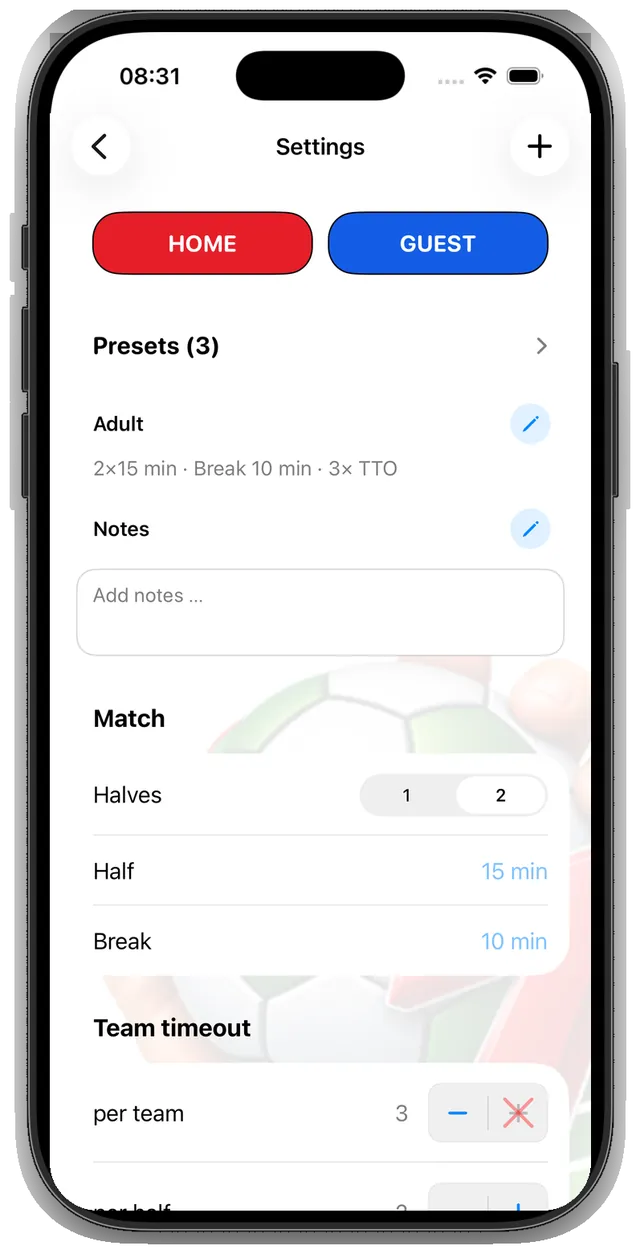
Before the match starts, you can edit the number and duration of halves, the half-time break and team time-out rules. The settings are synchronized between iPhone and Apple Watch. You can also save them as your own preset.
Use the “Notes” field to record details such as special rules for youth matches. These notes can be saved with the match settings as a preset and edited later using the pencil icon .
App settings
Keep Ref7 Set Up Your Way
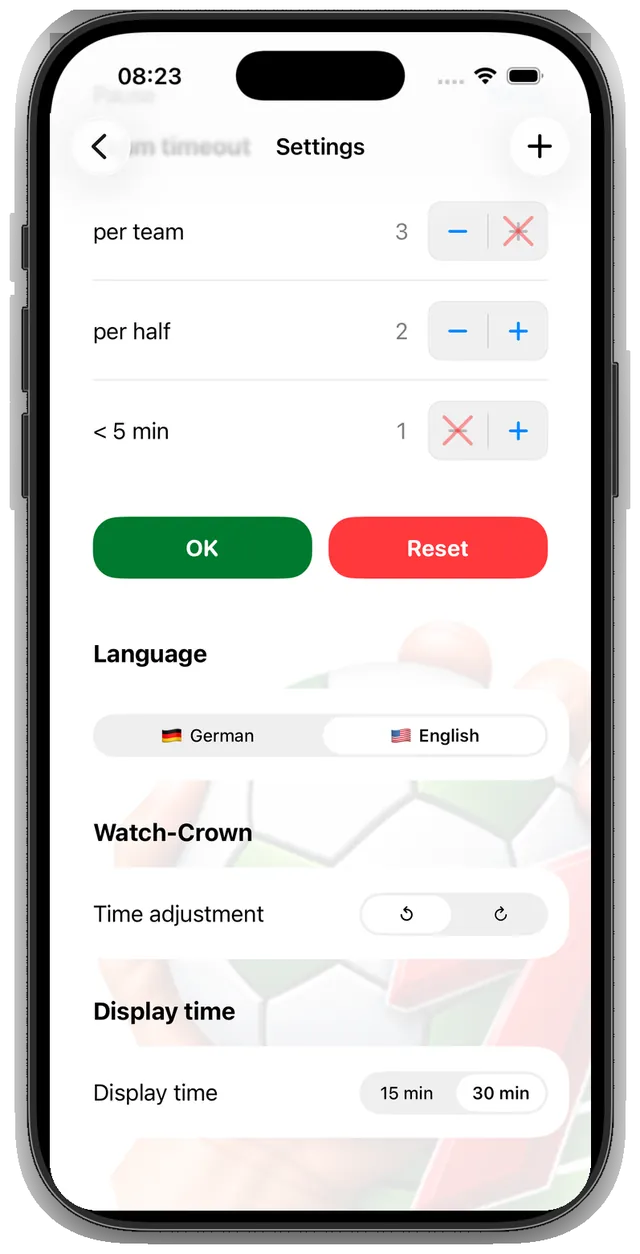
Language, Digital Crown direction for time corrections and the second-half match-time display are independent of match presets. Ref7 stores them permanently and synchronizes them between iPhone and Apple Watch, so your latest choices are ready for the next match.
For the second half, the match-time display can start again at 00:00 or continue at 30:00 when each half lasts 30 minutes—matching the arena clock.
Match settings: configure rules and save them as a preset.App settings: permanently stored controls and match-time display options.
Part 1
Create and Save a Preset
First configure the desired match settings.
After a manual change, Ref7 displays the configuration as “Manual settings”.
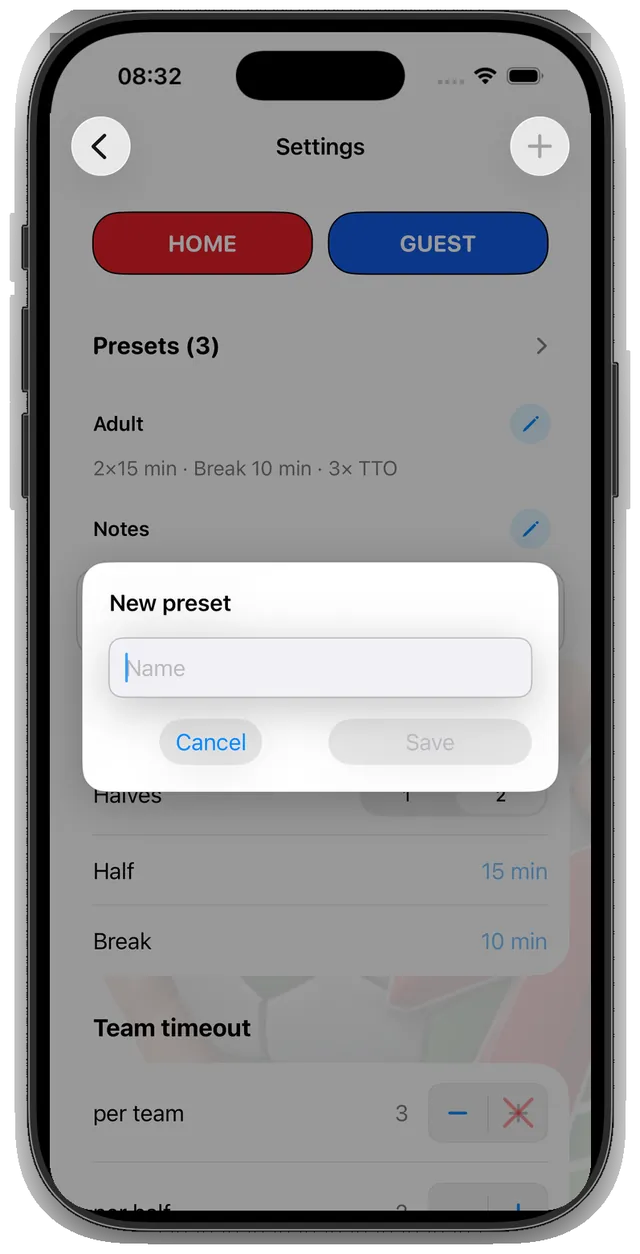
Tap the plus icon in the top right of the settings page to save the current configuration as a new preset.
Enter a name and confirm the save action. The new preset becomes active immediately.
1 · Use the plus button in the top right to save and name the current configuration.2 · The newly saved preset becomes active immediately.
Part 2
Select, Edit or Delete a Preset
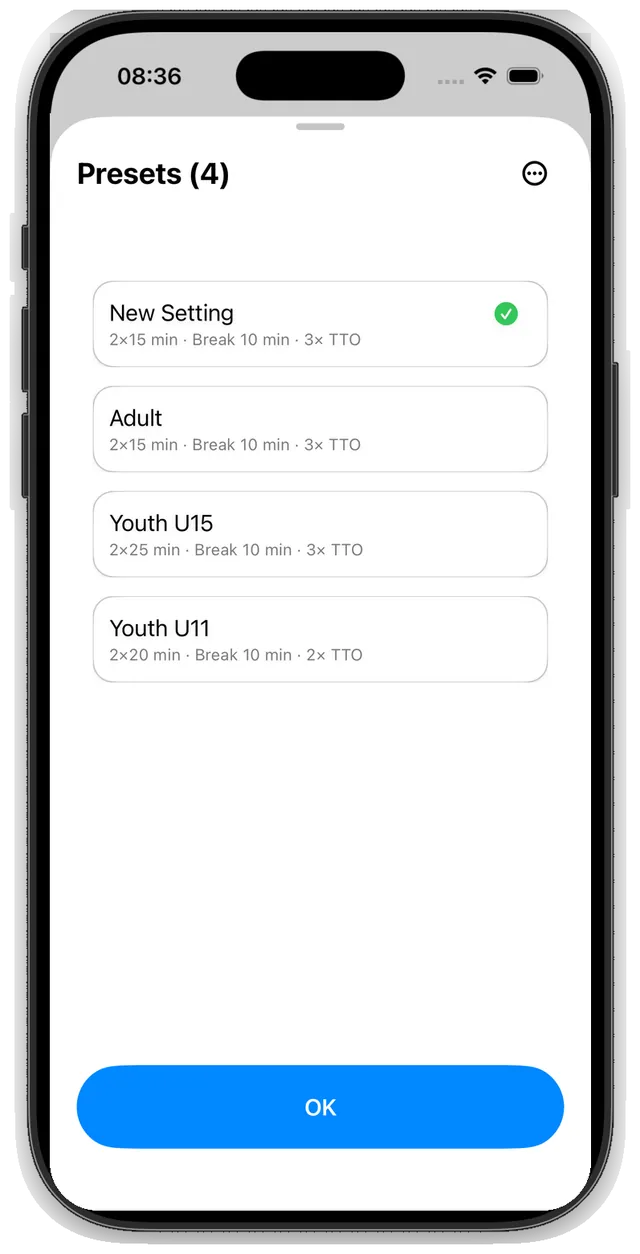
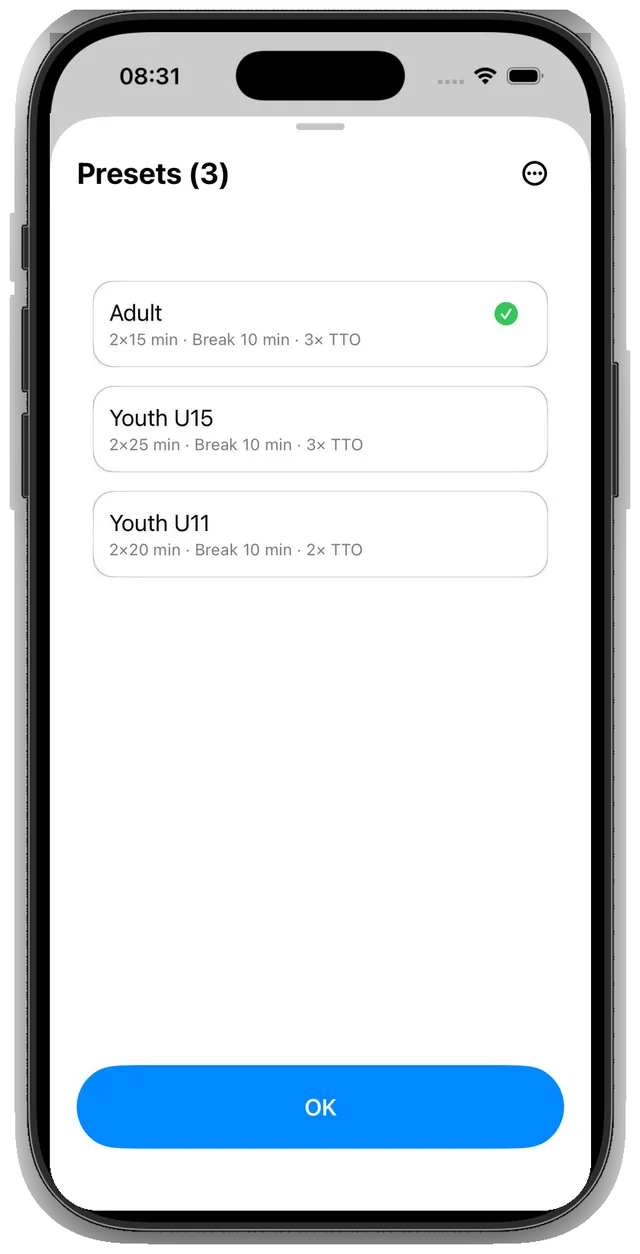
Open “Presets” to view the saved configurations and select the one you want.
The green checkmark identifies the active preset.
Edit names and notes using the pencil icons .
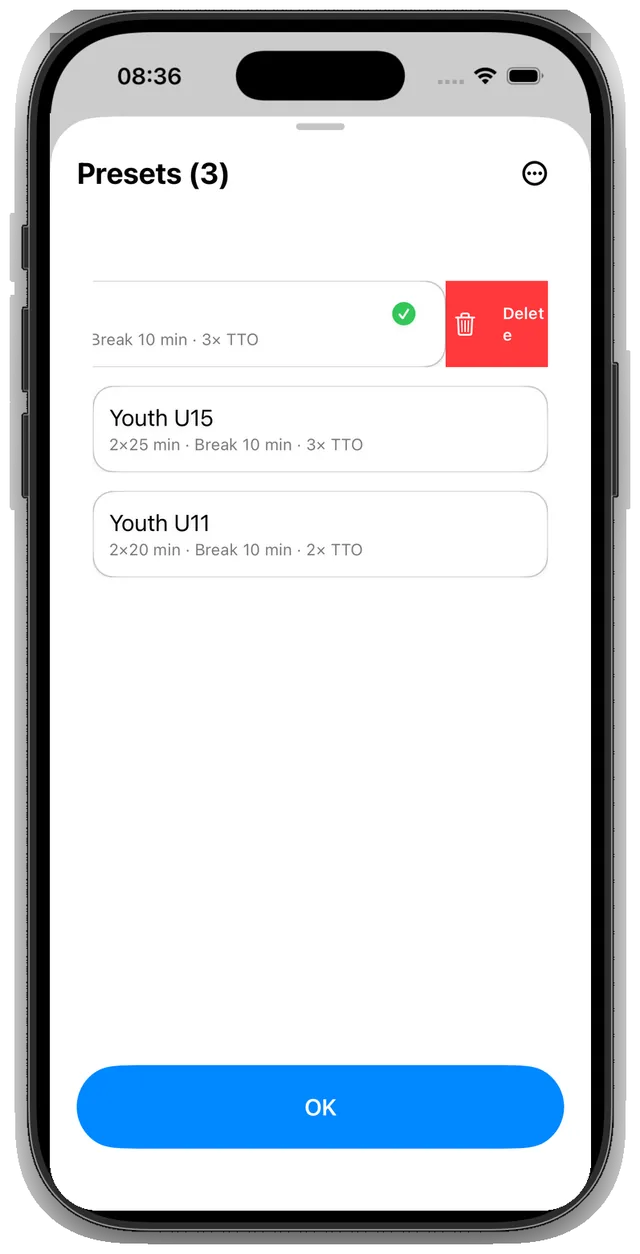
To delete a preset, swipe it to the left and confirm the deletion.
3 · Open and select saved presets.4 · Swipe left and confirm the deletion.
04.4
Match Report and Archive
After the match, Ref7 saves the complete match timeline on your iPhone. If the connection between iPhone and Apple Watch is interrupted or the iPhone is switched off, completed matches are saved on the Watch and transferred to the iPhone as soon as the connection is restored.
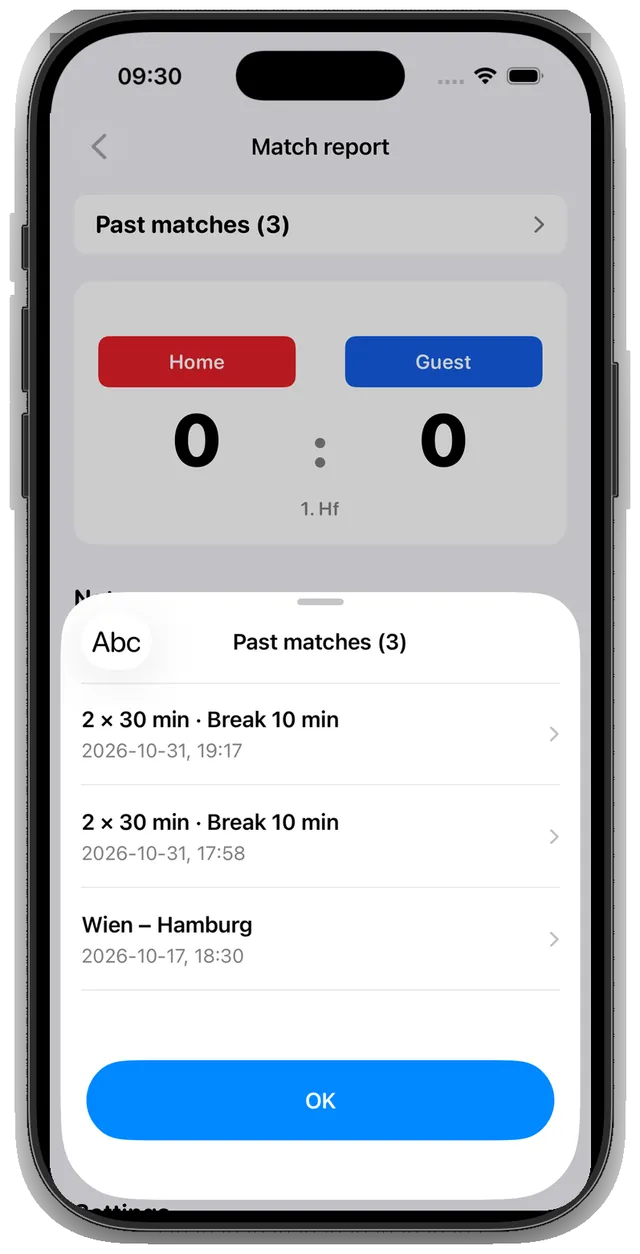
Past matches
Open a Match from the Archive
By default, completed matches are listed with the most recent match first. The match name is initially generated from the match settings and the date and start time of the match. You can change it later. Use the sorting control to arrange the list alphabetically by this name. Tap an entry to open the saved report.
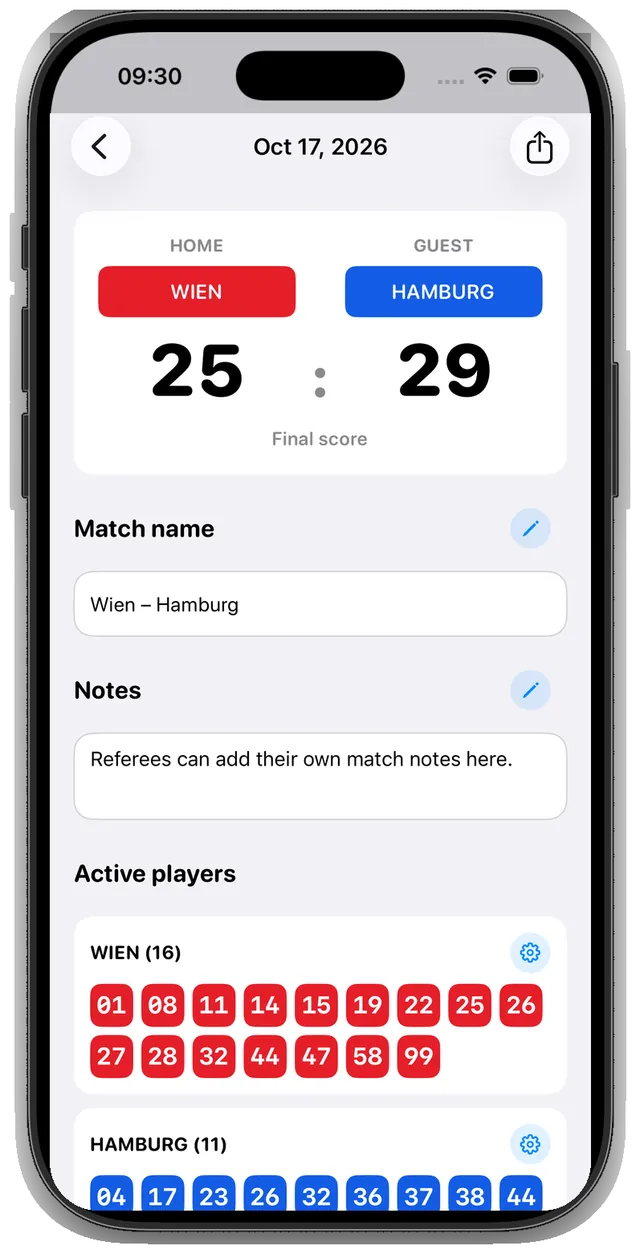
In this example, we open the report for WIEN versus HAMBURG, with a final score of 25–29.
WIEN – HAMBURG is a fictional demonstration match.
Sort completed matches by time or match name.
Match report
Review the Complete Match Timeline
The match report shows more than the final score: it documents the complete match timeline, including goals and score development, personal penalties, team time-outs, match interruptions and time corrections. This makes it possible to review when events were recorded and in what order. Swipe through the four views, or use the arrows on desktop.
Use the pencil icon to edit the match name and notes after the match. The share icon in the top right opens the PDF export, explained in more detail in Chapter 04.5.
Match information and final score.The beginning of the recorded match timeline.The end of the match with its final events.Penalties and team time-outs at a glance.
After the match
Adjust Teams after the Match
In the report, press and hold a coloured team container or tap the gear next to the active players. You can then adjust the team name, shirt colour and active players.
Player numbers with recorded penalties are locked and struck through. All other numbers can still be activated or deactivated.
Open Team Settings from the team container or the gear in the report.Numbers with recorded penalties remain locked and struck through.
04.5
Export the Match Report as a PDF
Open a saved match report, tap the share icon in the top right, then save, send or print the PDF from the iOS share sheet.
Three steps
Share or Save the Report
Open the saved match report.
Tap the share icon in the top right.
Save, send or print the PDF from the iOS share sheet.
The sample match report shows the complete PDF result for the fictional WIEN versus HAMBURG match.